
There are so many ways to use AI in our design process now that it’s hard to keep up. I’ve been seeing designers share how they weave AI into their projects, and I’ve collected five examples worth a closer look.
What interests me is how designers use AI depending on how clear the design direction is. When they’ve established how something should look and behave, they can ask an agent to apply those decisions to new screens or materials. When they’re still exploring, they can use generated options to compare ideas and decide what to develop.
In both cases, the designer gives the agent something to build on. That might be an existing interface, a component library, brand guidelines, or a moodboard with an explanation of what appeals to them. Those inputs help shape what the agent produces. The designer then reviews the result, refines it, and decides what should guide the next round of work.
1. Move between Figma and code with Claude
Gaana, the only designer at her company, combines Figma MCP, a Figma Chrome extension, and Claude. She says this gives her the best control she’s had over auto layout, spacing tokens, semantic colors, and text styles. Gaana’s thread
Her replies explain the workflow more clearly. She brings browser views into the Figma canvas using the Chrome extension, edits them, and feeds the changes back to Claude. She describes this as particularly useful for making lots of small edits, and also uses Claude for HTML prototypes.
Claude helps with specific adjustments inside the design. When someone asks about keeping spacing tokens consistent, she shares an example request she uses.
“Claude, lock all my designs into spacing tokens”
She reports that this works well for her.
This sits within a broader project with her frontend engineer to apply a unified design system to their existing production app. Her longer-term goal is to contribute frontend fixes herself and give engineers enough design guidance to build prototypes that follow the system. At the time of the thread, they were still developing that workflow.
The useful connection is between the interface already running in the browser, the detailed editing available in Figma, and the implementation work Claude can help with. That gives her a way to refine the existing product while using its design system more consistently.
2. Give AI a map between design and code
Junior García, founder of HeroUI, describes how his team uses Paper, Claude, and a component library instead of Figma. All screens live in Paper and are organized into one file per feature or module. At the time of his post, the setup included more than 20 files and 100 boards. Junior’s thread
We cancelled our Figma enterprise plan
— Junior García (@jrgarciadev) October 29, 2026
This is how we design at HeroUI now 🧵 pic.twitter.com/5v5ARROXvi
A CLAUDE.md file maps the system. It lists every Paper file, its link, and the boards it contains. Each board has an ID that the code references, giving Claude a way to find the design associated with a screen.
Before designing or building, Claude opens the relevant Paper file through its MCP connection and reads the styles. It builds the interface with HeroUI and HeroUI Pro components, giving it established components to assemble.
The connection works in both directions. When Claude changes a screen in code, it updates the corresponding Paper board in the same task.
Junior explicitly identifies Paper as the source of truth.
This workflow is useful because the relationships are clearly defined and the design boards and code stay in sync. Claude can find the right design, read its details, use the intended components, and update the UI screens when the implementation changes. Keeping design and code aligned is an explicit part of the task.
3. Use an agent and brand guidelines for creative exploration
Kevin Grajeda, founding design engineer at Dessn, describes giving an AI agent a set of brand guidelines and letting it explore overnight. The results included animated brand assets that the team could review and develop further. Kevin’s post
— Kevin Grajeda (@k_grajeda) October 27, 2026
The team had already worked with the studio HEX to establish the brand’s direction, rules, and visual style. Those guidelines gave the agent a defined identity to work with and constraints for its exploration.
Kevin reviews the results, selects what he likes, rejects what he doesn’t, and uses that feedback to steer the next round. Each round gives the team more material to consider as they develop brand applications.
The team defines the identity and chooses what to develop. The agent explores possibilities within that direction.
This approach lets designers explore how an established identity could work in motion, illustrations, campaign assets, or different treatments of a mark. The guidelines provide a reference for judging whether an idea fits the brand, while the designer’s feedback makes the next round more focused.
4. Turn content and visual references into a presentation
Stephen Haney, founder of Paper, uses the tool for his decks and presentations. He supplies plain-text slide ideas and visual references, then asks an AI agent to bring them together. In one example, he used Paper’s Mono artwork as a style guide and asked Cursor to start a board presentation. Stephen’s post
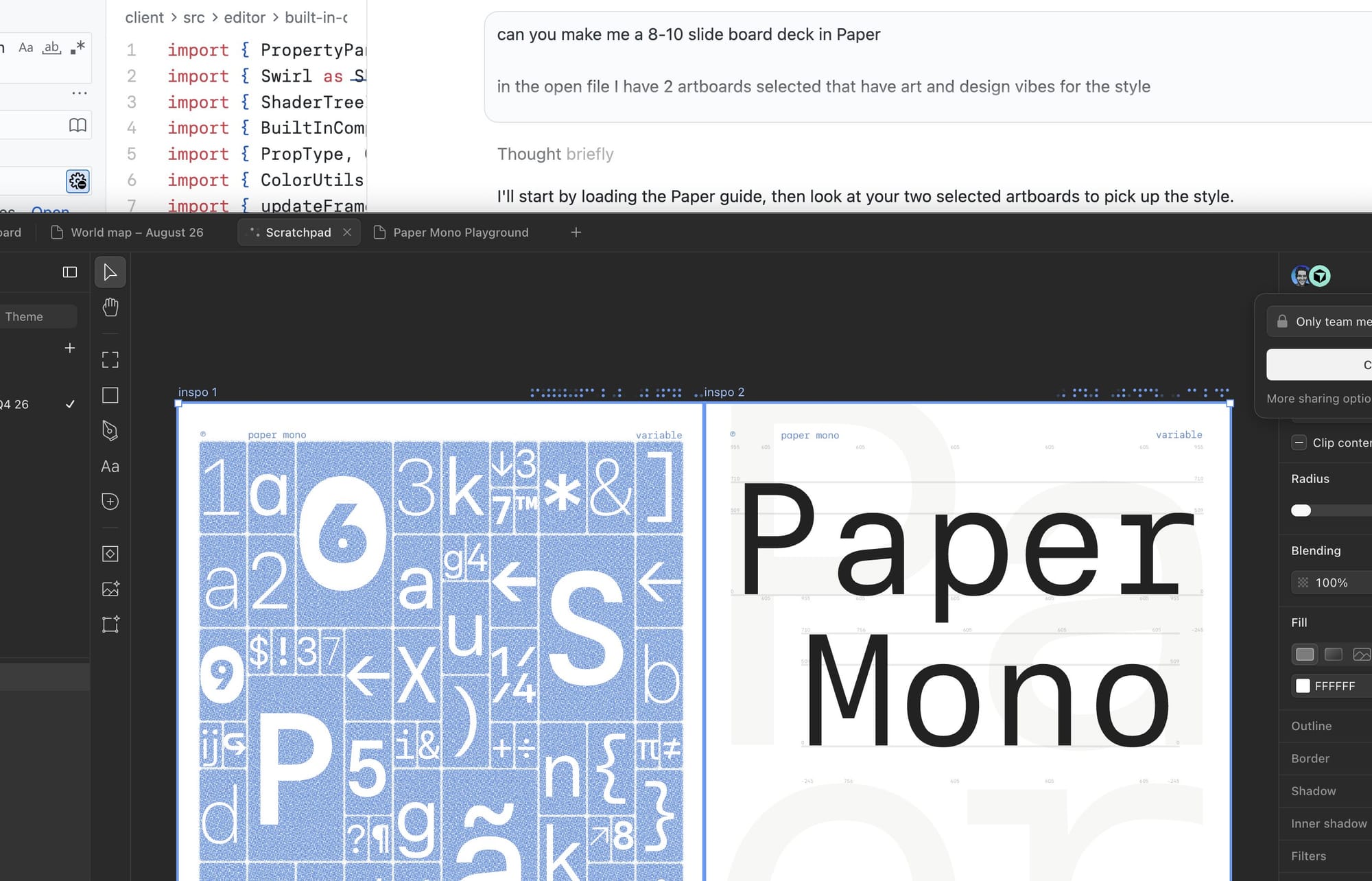
The content and references give the agent two parts of the brief. The slide ideas establish what the presentation needs to communicate. The visual references guide layout, typography, color, and imagery.
The outline gives the agent a story to communicate. The references provide visual direction.
This approach gives designers a first draft they can assess as a presentation. They can review the sequence, check whether each slide emphasizes the right point, and see where the content needs more space or explanation. Working with the slides makes it easier to refine the story and its visual treatment together.
5. Turn a moodboard and voice note into a reusable website direction
Charlota begins with a moodboard and records a voice note explaining what appeals to her in the references, from typography and layout to rhythm and motion. She gives Framer Agent the references and transcript, uses them as the basis for a Skill, and asks for several visual directions applied to a webpage wireframe. Charlota’s workflow
— Charlota (@0xCharlota) September 25, 2026
She selects a direction and refines it by hand. Once she’s satisfied, she captures her design decisions in a second Skill, such as /final-identity, which she uses when building the next sections of the site.
The first Skill helps the agent explore possible directions. The second records the designer’s chosen direction so the agent can apply it elsewhere.
This approach makes the designer’s interpretation of the references part of the brief. Her commentary explains what she wants to explore, while her manual refinements establish the details the agent should carry into subsequent sections.
Her demo also shows why the generated options need scrutiny. One variation stayed too close to a website on her moodboard, as she acknowledged in the thread. Reviewing what the agent borrowed from each reference helps decide which ideas to develop.
Keep room for exploration
Making something yourself can help you understand it. Moving elements around, trying an interaction, or building a rough prototype can reveal a problem you hadn’t noticed and change what you want to make. Keep that kind of exploration in your process as you decide which tasks to give an agent.
Start with one task on a current project. Give the agent the context it needs, explain what you want to achieve, and keep the scope small enough to review closely. Notice where its work helps you move forward and where you need to get involved.
Over a few attempts, you’ll get a clearer sense of where AI fits into your practice. You might find it useful for keeping designs consistent, getting an idea ready to test, or exploring possibilities you’d otherwise struggle to make time for. Let that experience guide which tasks you delegate and where you want to spend more time making and thinking for yourself.